How to Identify an Authentic iPhone Before Purchase in Nepal
Key Takeaways
- Learn to distinguish real iPhones through physical traits like display quality and build materials
- Verify the IMEI number to confirm the device matches the boxed serial
- Check the model number to ensure you are buying a brand-new retail unit
- Inspect internal parts for non-Apple replacements using the Settings menu
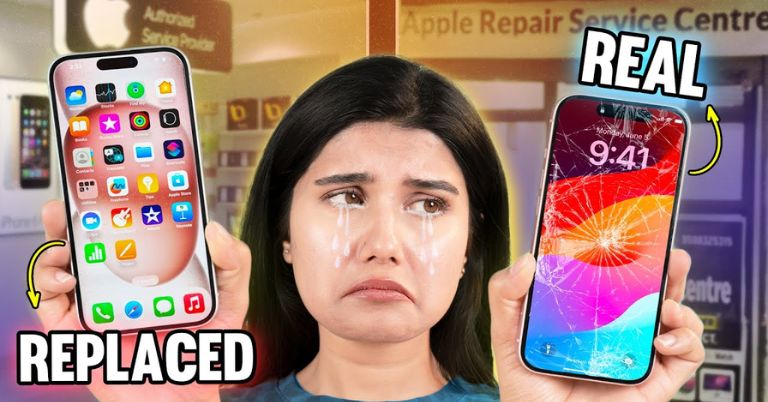
The widespread appeal of iPhones in Nepal, particularly among younger users, has unfortunately led to a rise in counterfeit devices. Purchasing from unauthorized sellers may offer lower prices but carries the risk of acquiring a fake product that appears deceptively similar to the genuine article. To avoid becoming a victim of such scams, it is essential to know how to identify an authentic iPhone before making a purchase.
When buying an iPhone, start with a thorough physical inspection. Authentic units feature a natural titanium finish, while fakes often exhibit an unnaturally shiny surface. The charging cables, display responsiveness, brightness levels, color accuracy, and viewing angles also provide clues. Fake iPhones may show minor cosmetic flaws and a display that scratches easily.
For a more reliable verification, check the IMEI number, a unique identifier for each iPhone. This can be found in Settings under General > About, on the SIM tray (except for the iPhone 14 series), or by dialing *#06#. Ensure this number matches the one printed on the box. Websites such as IMEI.info can also provide additional device details. If the seller cannot produce a box, use the methods above to confirm the IMEI.
Another critical check is the model number, located in Settings > General > About. A model number beginning with “M” indicates a brand-new retail unit, while “F” signifies a refurbished model, “N” a replacement unit, and “P” a personalized or engraved unit. If you are paying for a new phone, avoid models starting with “F,” “N,” or “P.”
For iPhone models from the iPhone 11 onward running iOS 15.2 or later, you can also inspect internal parts. Navigate to Settings > General > About and review the Parts and Service History section. If any component is listed as “Unknown,” it may have been replaced with non-Apple parts or transferred from another device.
Additional steps include testing network connectivity, verifying the iOS version, and activating Siri. When in doubt, take the device to an official Apple Store for professional authentication. By following these guidelines, you can confidently purchase a genuine iPhone and enjoy the full benefits of Apple’s quality and support.
![Infinix Mobile Price in Nepal [Updated 2026]](https://d1sudpwijxjvof.cloudfront.net/media/infinix-mobile-price-nepal/5f9e1d00c8861eed.jpg)