Guide to Installing Android N Developer Preview on Nexus Devices
Key Takeaways
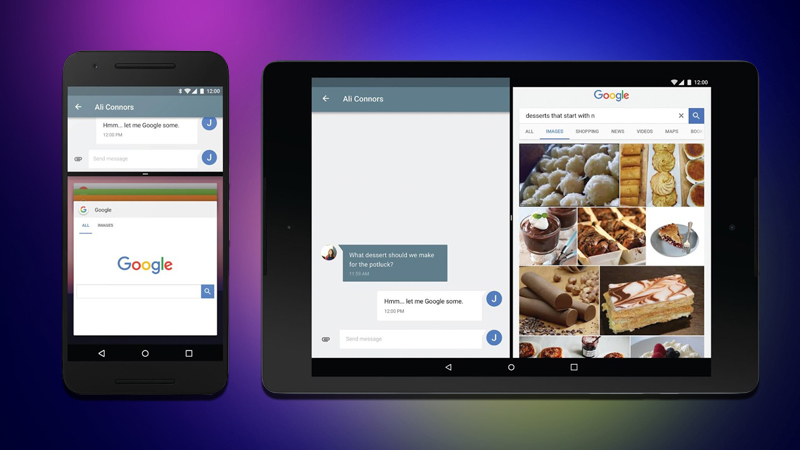
- Android N Developer Preview brings multi-window support, redesigned settings, and improved battery management
- Supported devices include Nexus Player, Nexus 9, Pixel C, Nexus 6, Nexus 5x, and Nexus 6p
- Installation requires ADB knowledge and results in data loss; alternatives include OTA enrollment
How to Install Android N Developer Preview on Your Nexus Device
Android has evolved significantly since its debut in 2009, with each new version bringing major changes. Android N marks another major milestone, introducing a redesigned interface and several usability improvements before its official launch at Google I/O 2016. Google released the developer preview early this year, allowing tech enthusiasts and developers to test the upcoming features.
Supported Devices
The Android N Developer Preview currently supports the following Nexus models:
- Nexus Player
- Nexus 9
- Pixel C
- Nexus 6
- Nexus 5x
- Nexus 6p Unfortunately, the popular Nexus 5 will not receive this update despite its large user base.
Key Features in Android N
The update includes several notable enhancements:
- Multi-window support allowing split-screen multitasking
- Redesigned settings menu with a new quick settings panel
- Updated hamburger menu in system settings
- Improved Doze mode for better battery efficiency
- Quick reply options directly from notifications
- Bundled notifications for cleaner alert management
- Overall performance and software stability improvements
Installation Steps
Important Notes: This preview is intended for developers, so expect some bugs and inconsistencies. All data on the device will be wiped during installation, so ensure you have backups. Basic knowledge of ADB and fastboot is required.
Manual Installation Method:
- Download the factory image for your specific device.
- Enable USB Debugging under Developer Options.
- Connect the device to a computer and open a command prompt in the ADB directory.
- Run
adb reboot bootloaderto enter the bootloader mode. - Navigate to the folder containing the factory image and execute
flash-allto start the installation process. The device will reboot once the process completes.
OTA Enrollment Alternative: If manual installation seems complex, you can enroll in the over-the-air update program:
- Visit the official enrollment website.
- Sign in using your Google account.
- Select “Enroll Device” under eligible devices.
- Agree to participate in beta testing.
- Check for system updates under Settings > About > System updates to receive the OTA update.
This preview offers early access to Android N’s fresh design and functionality, ideal for developers and early adopters looking to test and provide feedback before the final release.